


Cloud storage for a business is one shared place for the company’s files, owned by the company, where the right people can open the latest copy from any device. The amount of space matters less than three things: who owns the files, who can open them, and how you get one back after a mistake. SphereOne Box is built around those three.
Most small teams do not choose their storage. It grows: a personal drive here, email attachments there, a folder on someone’s laptop. It works until a person leaves, a client asks for last year’s contract, or two people edit different copies of the same deck. This guide covers what to look for and how to set storage up so it keeps working as the team grows.
Why does a business need its own cloud storage?
- The company keeps its files. Files in a personal account leave with the person. Files in a workspace stay when someone moves on.
- One latest copy. Everyone opens the same file, so nobody works on the version that was emailed around last week.
- Access you can change. You decide who sees a folder, and you can take that access away the day a project ends.
- Mistakes can be undone. An overwritten or deleted file comes back from version history or the trash.
- Work from anywhere. The office, home and a phone all open the same files.
What should you look for in business cloud storage?
| What to check | Why it matters | The question to ask |
|---|---|---|
| Ownership | Files must stay with the business | What happens to a person’s files when they leave? |
| Sharing controls | A link is a key to a file | Can a link expire, and can I revoke it? |
| Version history | People overwrite files | How long are earlier versions kept? |
| Trash | People delete files | How long can a deleted file be restored? |
| File size | Video and design files are large | What is the largest single file? |
| Malware scanning | One infected upload reaches everyone | Are uploads scanned before they open? |
| A record of activity | Disputes and audits need facts | Can an admin see who shared or deleted a file? |
Notice that space is not on the list. Space is easy to compare and easy to buy more of. The rows above are the ones that cause real trouble when they are missing.
How do you set up cloud storage for a team?
- Start with a few top folders. One per client, project or department is enough. Deep trees hide files; five clear folders beat fifty clever ones.
- Name folders the way people speak. "Acme - 2026 website" is found faster than "ACM_WEB_26".
- Share folders with people, not with everyone. Give each folder to the people who work in it, and add others when they need it.
- Use links for outsiders, with an end date. A client link should expire when the project closes.
- Upload a new version, not a new file. The file keeps its name, its place and its links, and the old copy is still there.
- Move the old files in once. Pick a day, move what the team still uses, and leave the rest archived where it is.
Which cloud storage mistakes cost teams the most?
- Company files in personal accounts. It is the most common one, and it only shows on the day someone leaves.
- Links that never end. A link sent to a client two years ago still opens the file unless it expired or was revoked.
- Ten copies of one document. "Final_v3_REAL" exists because people do not trust the tool to keep the old copy. Version history removes the reason.
- Treating storage as a backup. Version history and a trash fix everyday mistakes. Critical records still belong in your own backups or exports.
- Nobody owns the structure. Give one person the job of keeping the top folders tidy, and it stays tidy.
How does SphereOne Box handle cloud storage?
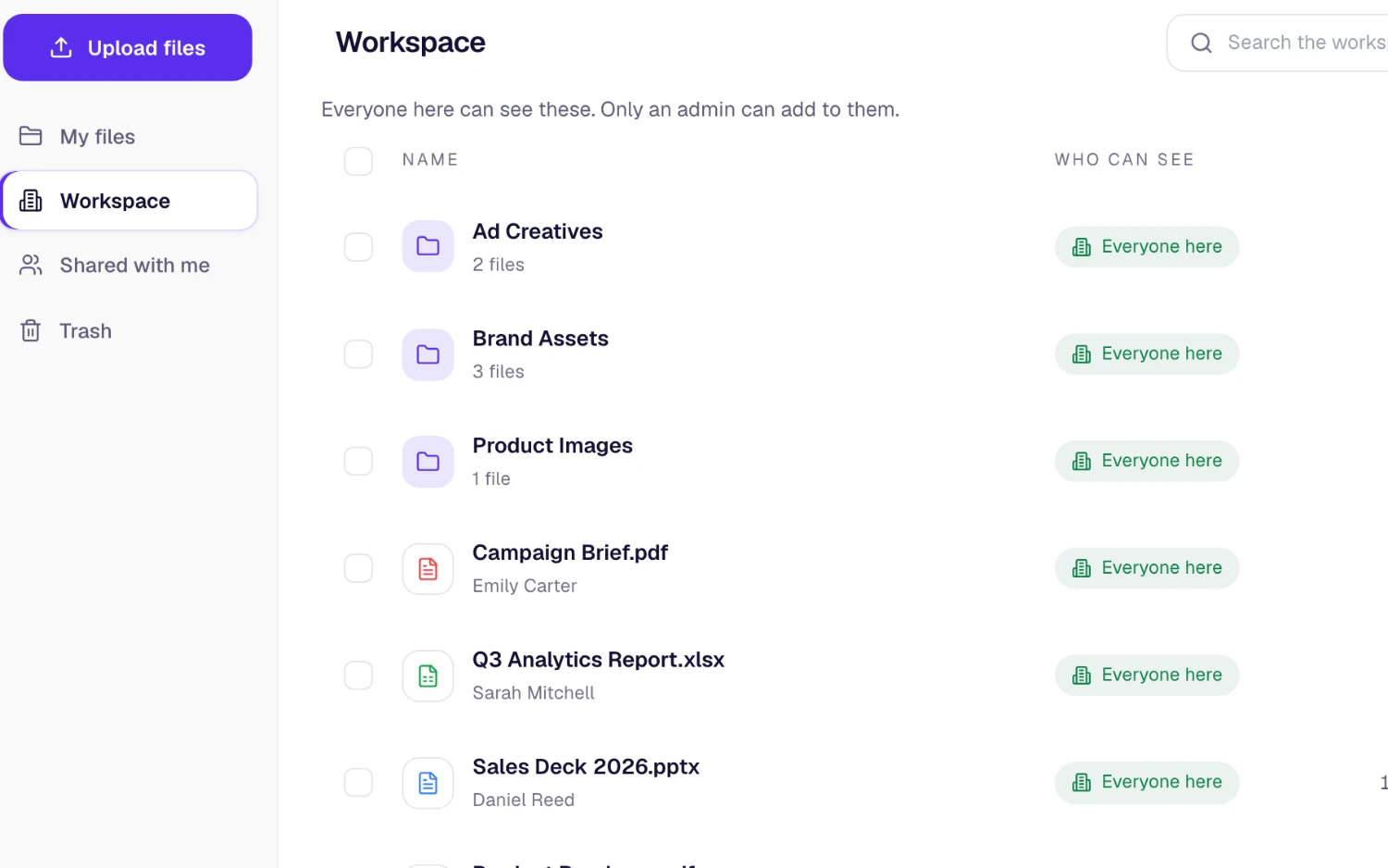
SphereOne Box is file storage inside the same workspace as your chats, meetings and tasks, so a file sits next to the conversation about it. Files belong to the workspace, and admins see and manage storage from one screen.
- Share links you control. Send a link that expires, revoke it at any time, or keep it open only to people signed in to your workspace. Our guide to secure file sharing links explains when to use each.
- Version history and trash on every plan. Upload a new version and the one it replaces is kept; deleted files go to the trash first. How long both last depends on the plan.
- Virus scanning on every upload. Only files that pass the scan can be opened.
- Preview in the browser. Check a document, image or video without downloading a copy.
- An audit trail. New versions, shares, links and permanent deletes are recorded in the admin audit log on Starter and up.
| Plan | Workspace storage | Largest single file | Trash recovery |
|---|---|---|---|
| Free | 5 GB | 50 MB | 30 days |
| Starter | 100 GB | 100 MB | 90 days |
| Business | 1 TB + 20 GB/user | 100 MB | 180 days |
The bottom line
Choose cloud storage for ownership, sharing control and recovery, not for the biggest number of gigabytes. Keep the folder structure simple, share with people rather than everyone, give outside links an end date, and upload new versions instead of new files. Then the company’s files stay with the company, and a mistake is a two-click fix.
See the file sharing overview for the full list, compare pricing, or start free.