

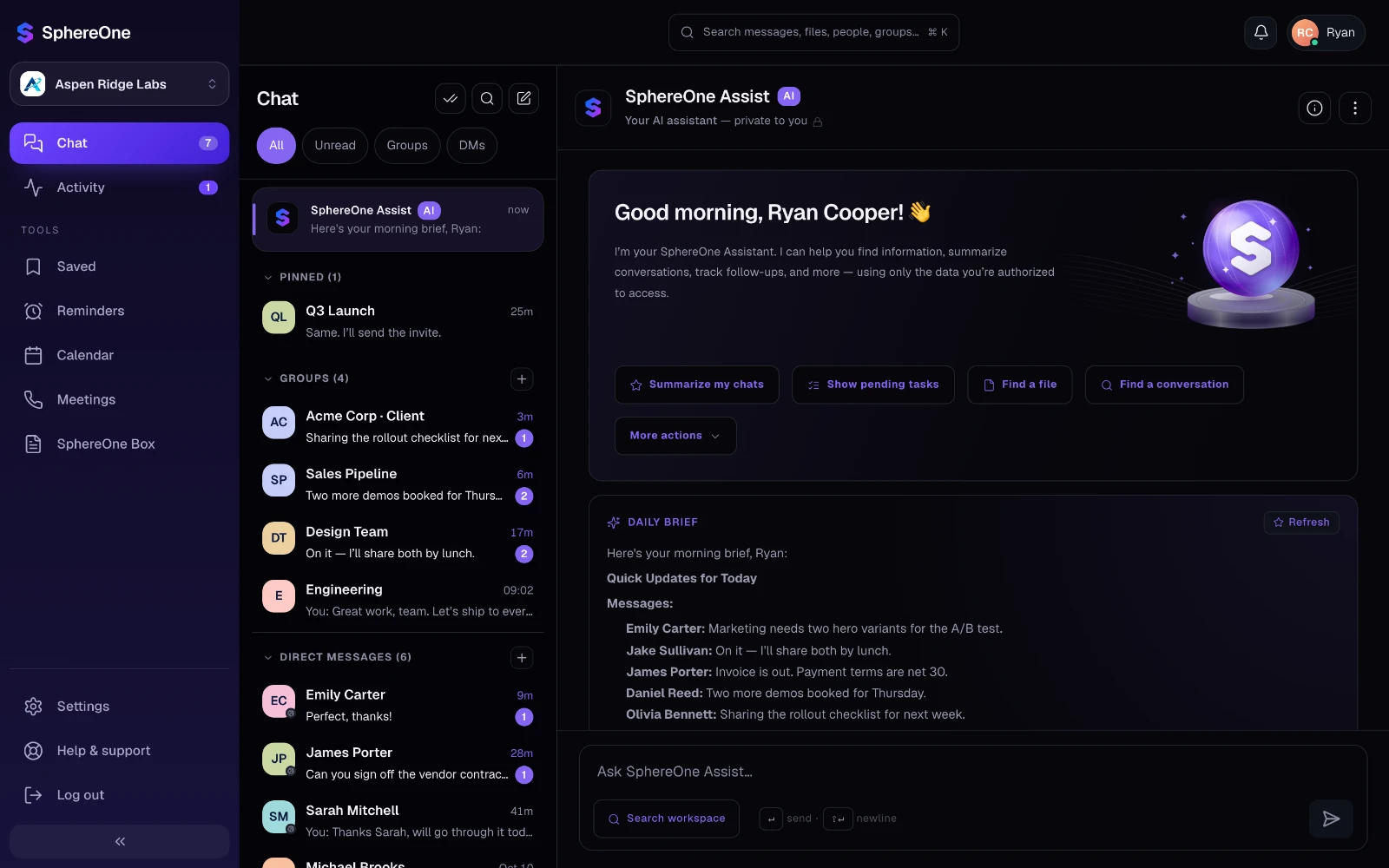
SphereOne Assist runs on more than one AI model provider, Google Gemini and OpenAI, through a single orchestrator. Each request goes to a primary model first; if that provider is slow, overloaded or down, the request moves to the other, inside a hard time limit. Access rules are checked before any model sees content, admins can switch AI off, and the Free plan has no AI.
This post explains how that works in practice: what happens to a request, when Assist fails over and when it deliberately does not, what the model can and cannot see, and what our terms say about your data. It ends with the questions worth asking any vendor that puts AI inside your team chat.
Why would an AI assistant use more than one model?
An assistant inside team chat is only useful if it answers when people ask. Building on a single model provider means inheriting that provider’s bad days. Running two behind one entry point fixes several problems at once:
- Outages. Every model provider has incidents. When one is down, requests go to the other instead of returning an error.
- Rate limits and slow responses. Providers throttle traffic at busy times. A second provider absorbs the overflow, so a summary does not hang for a minute.
- No lock-in. Because every feature talks to one orchestrator rather than to a vendor directly, the primary provider is a configuration setting. Models can be swapped as they improve without rewriting summaries, drafts or the daily brief.
- The right model for the job. A feature whose cost and quality balance differs from the rest can name its own model on each provider, and failover still lands on a model the fallback actually has.
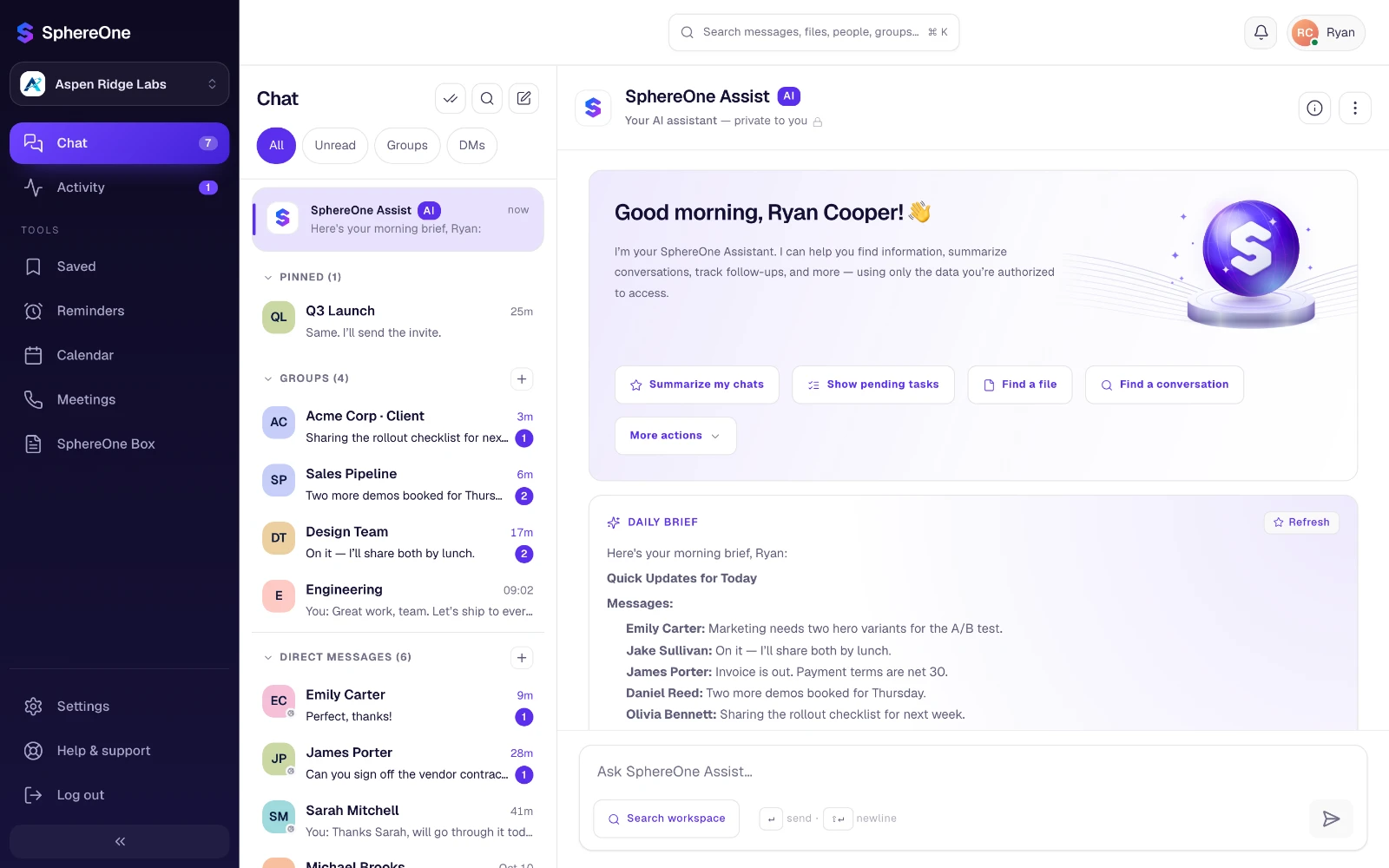
For the person using Assist, none of this is visible. There is no model picker, no second login and no separate AI subscription to manage. They ask, and an answer comes back, marked as AI-generated.
What happens when you ask Assist for a summary?
Here is the path of one request, in order. Every AI feature in SphereOne, from catch-ups to drafts to the daily brief, goes through the same steps.
- Is AI allowed here? Three answers must all be yes: the service has AI running, the workspace’s plan includes AI (the Free plan does not), and the workspace’s admins have not switched it off. The admin switch is read fresh on every request rather than from a cache, so switching AI off takes effect on the next request, everywhere.
- Is AI allowed for this person? On custom roles, AI features are a permission switch, so an admin can turn them off for a role or a person, for example a team of temporary staff.
- Gather only what this person can open. Conversation content is fetched through the same membership checks the app uses when you open a chat yourself. Assist cannot read a private channel you are not in, a direct message you are not part of, or messages you cleared for yourself.
- Build the prompt. The relevant messages become a transcript with authors’ names, never their email addresses, plus the instruction for the task.
- Send it to the primary provider, with a deadline. Each attempt runs under a hard per-request time limit. If the provider does not answer in time, the attempt is cancelled.
- Fail over if it makes sense. If the failure is about capacity or luck, the request goes to the other provider. If it is about the request itself, it stops (more on this below).
- Return the answer, labeled. The interface marks the response as AI-generated. If you insert it into a message, it becomes your message, and you are responsible for it.
How does the failover actually work?
A naive failover sends every failed request to the second provider. That sounds safe but costs twice for failures a second provider cannot fix, and it hands load to the fallback at the exact moment the primary is about to recover. Assist sorts failures first, then decides:
| What went wrong | What Assist does | Why |
|---|---|---|
| Timeout | Moves to the other provider | A slow provider should not hold your answer |
| Rate limit | Waits briefly, retries the same provider once, then moves | The primary is often free again within a second |
| Outage or unknown error | Moves to the other provider | The other provider may be healthy |
| Malformed request | Stops and shows an error | The other provider would reject it too |
| Content refusal | Stops and shows an error | A refusal stays a refusal |
The rate-limit wait is capped at five seconds. If a provider asks for longer, failing over is the better answer, because nobody should stare at a spinner for a minute.
Streamed answers, the ones that appear word by word, follow one more rule: failover only happens before the first word arrives. Once a provider has started writing, Assist cannot un-send what you have already read, so a mid-answer failure is shown as an error rather than silently restarted on another model. You never get half of one model’s answer stitched to half of another’s.
Can the AI see conversations I cannot open?
No. This is the rule that matters most, and it is enforced before a model is involved, not by asking the model to behave. Assist acts on behalf of the person asking and can use only content that person is already permitted to see.
- Channels: public channels in your workspace, plus private channels you are a member of.
- Conversations: direct and group messages you are part of, minus anything you cleared for yourself.
- Clients: a client account reaches only the rooms it has been added to, even for a channel the rest of the company can see.
- Search inside Assist: the list of channels and conversations you can reach is worked out first, and the search runs inside that list. Results you could not open never come back, not even as a count.
So the same question gets different answers from different people. Ask “what did we decide about the Acme renewal?” and Assist answers from the threads you can open. A colleague in the deal channel gets an answer that includes it; you do not, and Assist does not hint that it exists.
Is our data used to train the AI models?
No. Our Terms of Service say it in one line: “Altrivis does not use Customer Data to train or fine-tune any artificial intelligence model and does not permit its AI providers to do so.” (Altrivis Management LLC is the company behind SphereOne.)
The Privacy Policy adds what happens on the provider side: “Our AI service providers may retain inputs and outputs for a limited period, not exceeding thirty (30) days, for abuse monitoring, after which they are deleted.” The AI Usage and Disclosure Policy lists each AI feature and which provider runs it: Google’s Gemini API as primary and OpenAI as fallback for Assist, catch-ups, the daily brief and translation, and OpenAI for speech to text.
That 30-day provider window is worth knowing. It is one reason the advice in our AI privacy guide still applies: decide as a business what kinds of information belong in any AI request, and write it down.
Who decides whether AI is on?
The business does. AI features are on by default on paid plans, and a workspace admin can switch them off for the whole workspace, and back on, at any time. When AI is switched off, no workspace content is sent to AI providers. Voice input still works in browsers that recognize speech themselves, such as Chrome, Edge and Safari.
- Plan: Assist is included on every paid plan at different levels, starting on Starter. Free has no AI of any kind: no Assist, no smart replies, no daily brief, no translation and no server transcription.
- Workspace: one switch for everyone, read fresh on every request.
- Role or person: custom roles can leave AI features off for some people.
- Actions: the Sphere agent, which acts across the workspace on a typed or spoken request, is on Enterprise only, and anything that would reach other people waits for the person to confirm it.
Why don’t teams need a separate AI subscription for work in chat?
Many teams already pay for a general-purpose AI chatbot, and those tools are good at plenty of things. The problem is the work that lives in your workspace. To summarize a client thread with a standalone chatbot, someone has to copy the thread out of your chat app and paste it into another company’s product, usually under a personal account, with none of your workspace’s access rules attached.
When the assistant is part of the workspace, that step disappears:
- No copy and paste. Assist reads the thread where it is, within your access, and the answer stays in the workspace.
- One set of rules. The admin switch, roles and client limits that govern chat also govern AI.
- One bill. AI is part of the paid plan rather than a per-person add-on bought tool by tool.
- No provider to choose. If one model provider has a bad day, people keep working, because the orchestrator moves the request.
A standalone AI tool still makes sense for work that has nothing to do with your workspace. For summaries, drafts, catch-ups and questions about your own conversations, the assistant should sit where the conversations are. Our explainer on the AI-native workspace goes further into why.
What does Assist actually do?
- Summaries of channels and threads, with decisions and action items, and the ones meant for you called out.
- Drafts and rewrites, and suggested replies in the language the conversation is held in.
- A daily brief timed to your time zone.
- Answers to questions about your workspace’s chats, threads and people.
- Dictation clean-up, translation of messages, transcripts of voice notes and video clips on paid plans, and summaries of documents stored in SphereOne Box.
It does not take meeting notes or transcribe calls, and its output can be wrong. Our terms ask you to review AI output before relying on it, and not to use it as the sole basis for decisions with legal or similarly significant effects on a person.
What should you ask any vendor about AI in team chat?
Whichever tool you choose, these questions separate a careful AI feature from a risky one. Ask for the answer in writing, ideally with a link to the vendor’s terms.
- Which model providers process our content, and where is that listed?
- What happens when a provider is down or slow? Is there a fallback, and is there a time limit?
- Are access rules checked before the model sees content, or does the model get a broad index and a polite instruction?
- Do clients and guests get the same limits inside AI features as in chat?
- Can an admin switch AI off for everyone, and does it take effect immediately?
- Is our data used to train models, by you or by your providers? How long do providers keep inputs and outputs?
- Is AI output labeled as AI-generated?
- Can the AI take actions, and does it ask before anything reaches other people?
Our AI readiness checklist turns these into a short rollout plan, and the AI policy template gives you wording for the rules your team should follow.
The bottom line
SphereOne Assist is one assistant on top of two model providers. Google Gemini and OpenAI sit behind a single orchestrator that fails over when it helps and stops when it would not, under a hard time limit. Access is checked before any model sees a word, customer data is not used for training, and the business keeps the off switch. Teams get AI inside their conversations without buying, choosing or babysitting a separate AI tool.
See what each plan includes on pricing, or book a demo to see Assist on your own conversations.